

C4D Texture Manager
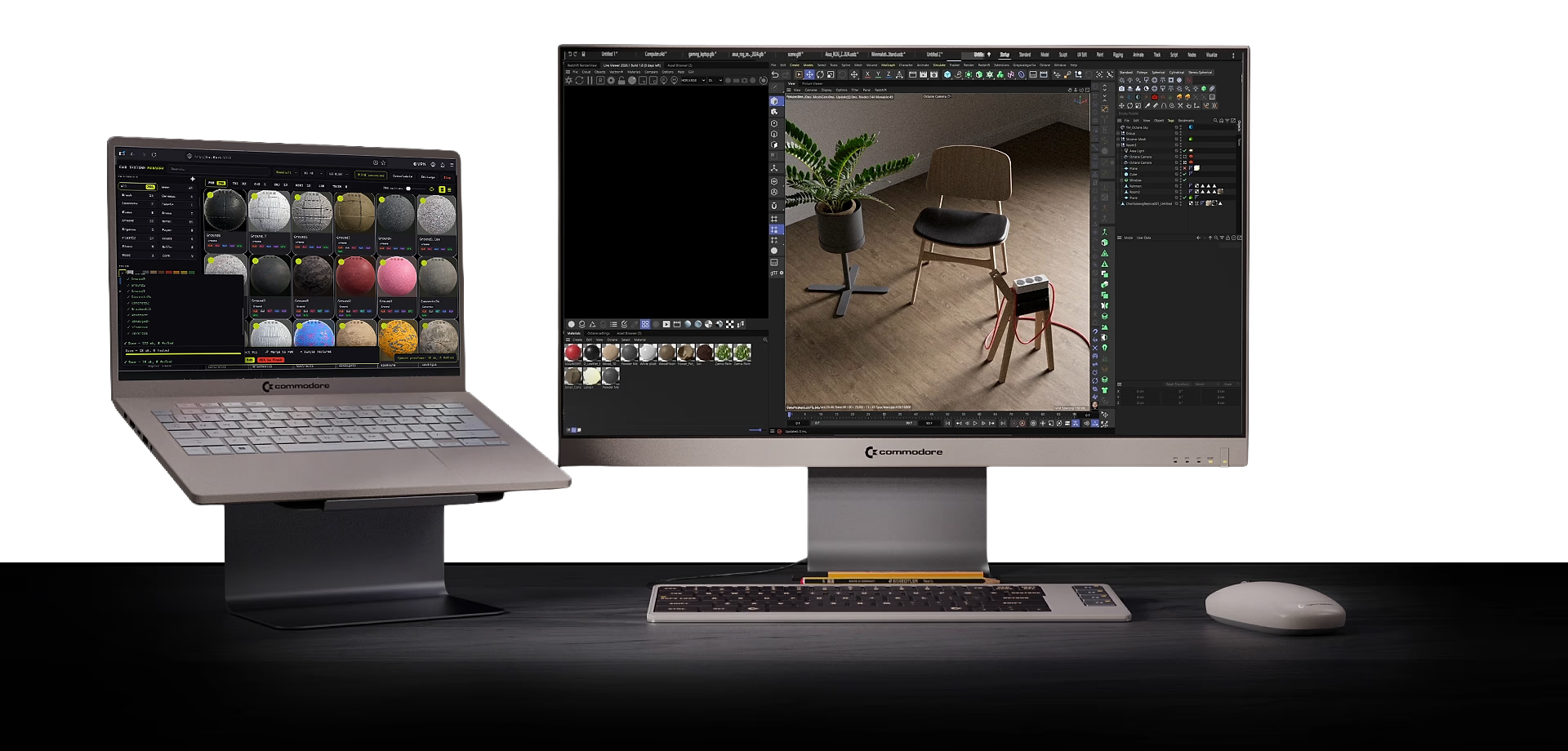
C4D Texture Manager is a local, browser-based asset library for Cinema 4D. It indexes texture folders on disk, auto-classifies PBR maps by filename, and pushes complete materials into the active scene as Redshift or Octane materials. Finished C4D shaders and 3D objects can also be archived through the bridge for reuse.
Runs entirely offline; no cloud, no account.
Windows 10 or 11
Cinema 4D 2024 or newer
(tested with R25/26, 2025 and 2026)
One-time payment
All future v1.x updates free

Key Features
Automatic PBR indexing
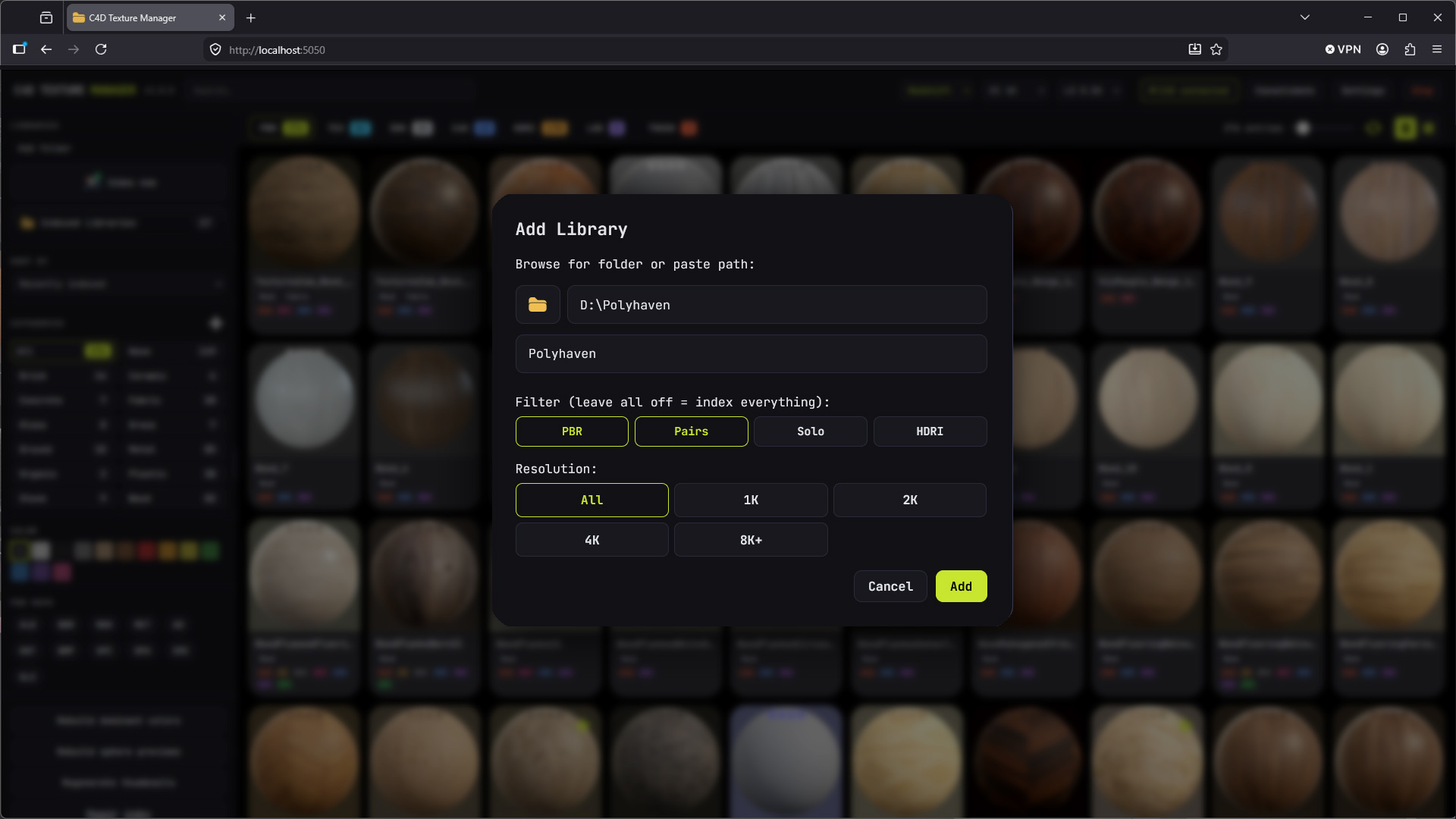
Scans folders recursively, groups maps by base name across sibling folders (Color, Normal, Roughness, …) and classifies each channel by filename token. ≥ 3 maps becomes a PBR set, 2 a pair, 1 a solo texture.
Two renderers, one library
One-click Send to C4D builds a fully wired Redshift Node Material (with GraphDescription) or an Octane Standard Surface, with correct color-space flags on every channel.
Live HDRI export
Send any HDRI as a Redshift Dome Light or Octane Sky tag with the HDR pre-assigned.
C4D shader and object library
Export shaders and 3D objects from the active C4D scene into the manager and re-import them later. Thumbnails are rendered automatically on export.
Smart preview detection
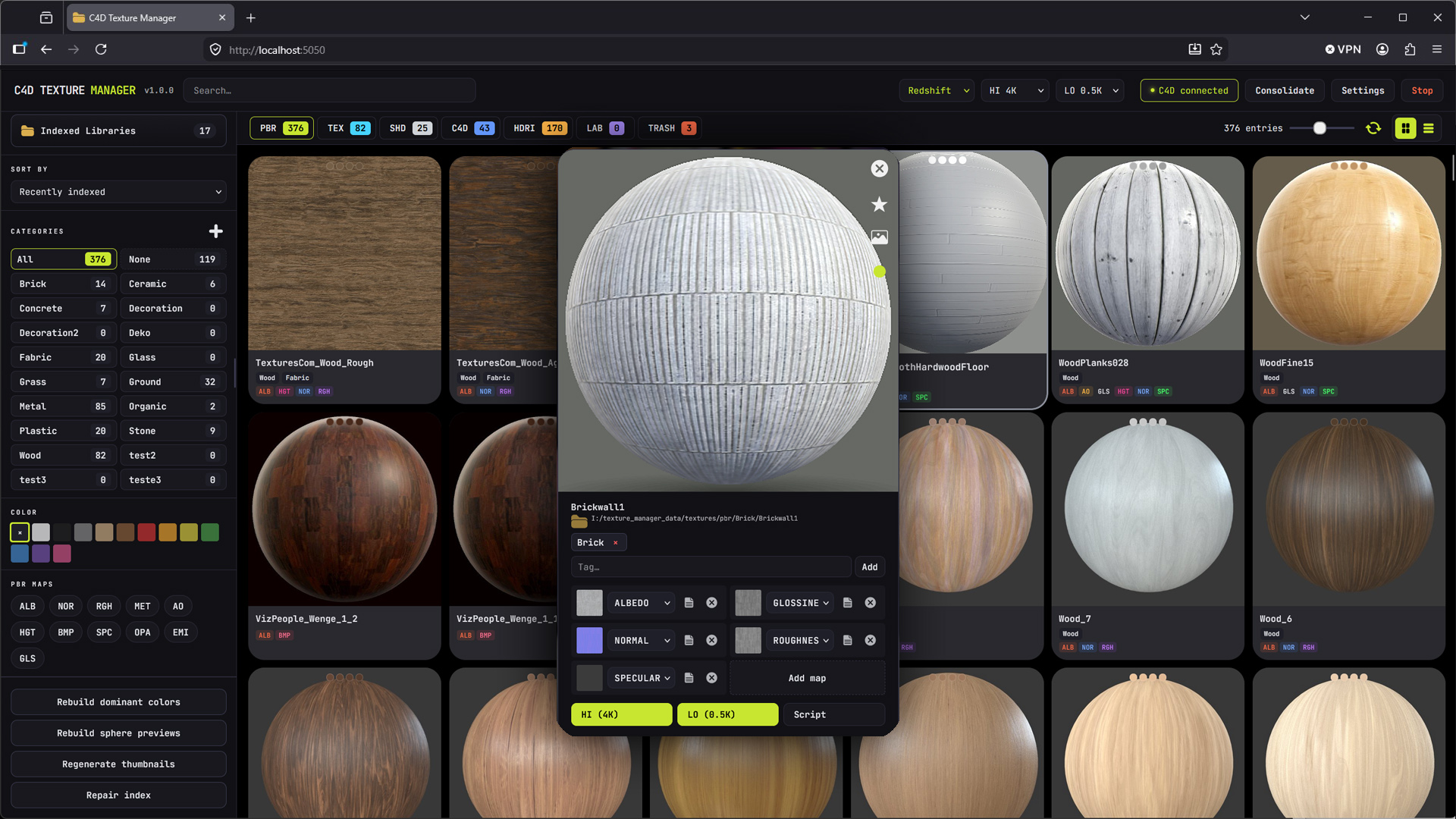
Existing preview.jpg, _thumb, _preview images and dedicated thumbnail subfolders are picked up automatically. Sphere thumbnails are rendered on demand for everything else.
Texture Lab
Non-destructive map editor with real-time sphere preview. Albedo compositing with masks, color correction, normal generation, height curves, seamless tiling, warp.
Path-based, non-destructive
Indexing only stores paths — original textures are never moved or modified. The optional Consolidate feature copies every referenced PBR map, single texture, and HDRI into the manager folder
The Hi/Lo switch in Cinema 4D
Flip every material to its Hi variant in one click before the final render. No reassigning, no re-linking, no rebuild — both paths were embedded on send.
Why
Texture Manager
First of all, I'm a huge fan of Cinema 4D. I've been working with it since 2007 and I have a lot of respect for what Maxon has built. The built-in Asset Browser just never quite clicked for me when I tried to build my own library, something always got in the way.
Switching between Redshift and Octane meant maintaining duplicate materials for the same simple PBR set, textures occasionally went missing on import for reasons I couldn't pin down, and small props in a scene still pulled in 4K maps that ate through GPU memory faster than they should. C4D Texture Manager is what came out of trying to solve those three things for my own workflow. Sharing it in case it's useful to anyone else.
C4D Texture Manager |
Cinema 4D Asset Browser |
|
|---|---|---|
PBR workflow |
One click. Fully wired Redshift Node Material or Octane Standard Surface, with correct sRGB/Raw flags applied automatically per channel. |
Building a PBR material means manually creating a Node Material, dragging in each map, and setting color-space flags one channel at a time. |
Texture paths |
Standard absolute filesystem paths. Every renderer reads them natively. Keep textures at their original location, or consolidate them into the manager folder for a portable bundle — your choice. |
Rewrites paths to a proprietary |
Indexing |
Incremental, automatic indexing. Add a folder, scan once, done. |
Manual indexing hidden behind a chip icon. Every new asset requires a manual re-index, or C4D re-scans on every launch. |
Viewport performance |
Every material is auto-cached in low resolution. One toggle swaps the entire scene between viewport-friendly low-res and full render quality without rebuilding anything. |
No built-in low-res variant system. Heavy 4K/8K textures slow down the viewport, and swapping to a lower resolution means rebuilding materials by hand. |
Quick Start
1. Launch the manager
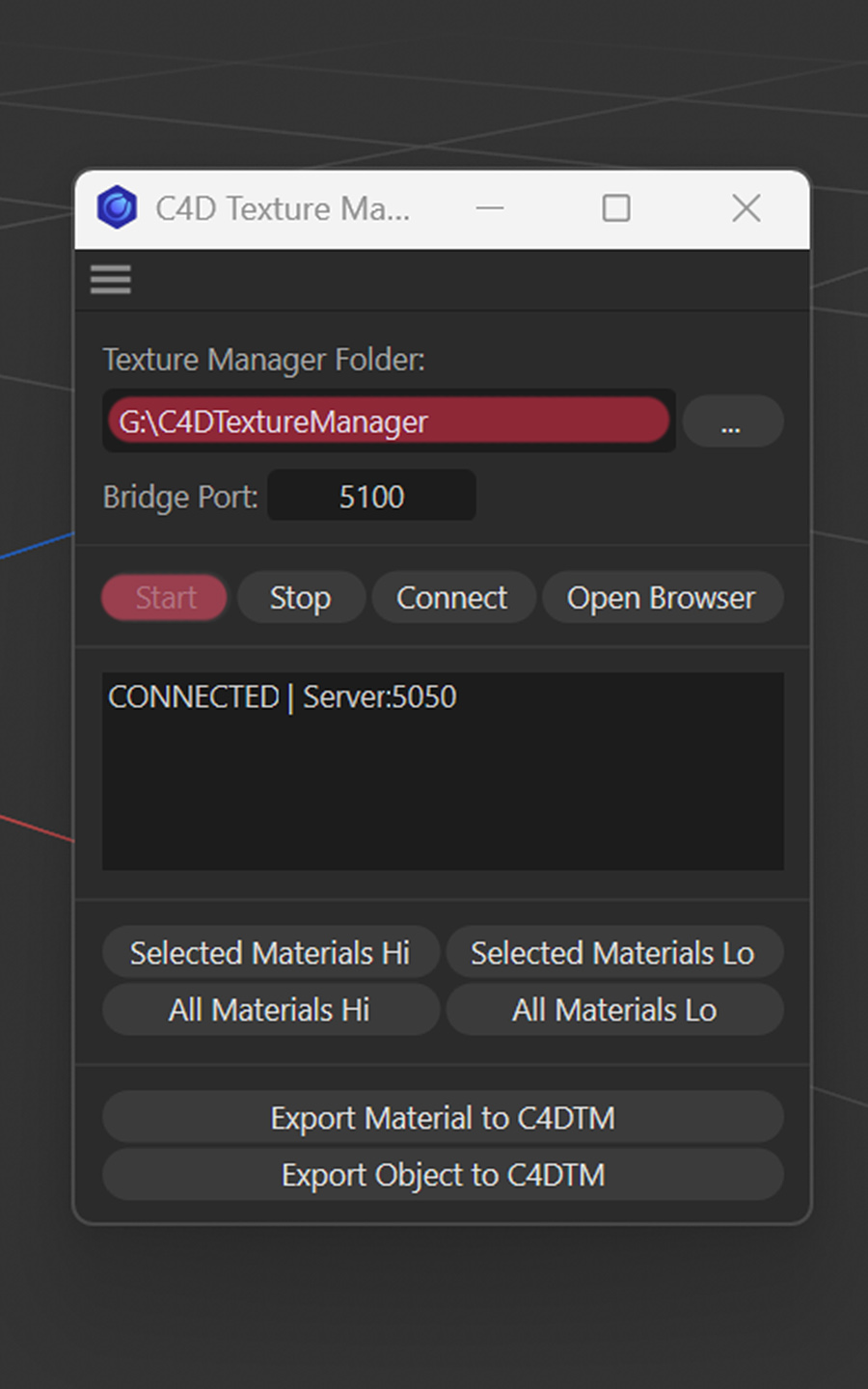
Two ways to start: launch the standalone executable directly, or run the launcher script from inside Cinema 4D — the script boots the manager and opens it in your browser, with the C4D bridge already connected so steps 4 and 5 work out of the box.
2. Add a folder
Click Add folder in the sidebar. Browse to a root containing PBR materials, single textures, or HDRIs (subfolders are fine — the scan recurses). Optionally set ingestion filters (PBR / Pairs / Solo / HDRI) and a resolution cap (1K–8K+) if you only want part of the folder. Confirm to register it as a library root.
3. Index
Click Index now in the header. Files are grouped by base name, classified by filename token (Albedo, Normal, Roughness, …), and routed to PBR, TEX, or HDRI. Cards appear in the grid as they are processed; source files stay where they are on disk.
4. Start the bridge
Run c4d_texture_manager_bridge.py inside Cinema 4D and click Start / Connect. The C4D pill in the manager header turns green once the handshake succeeds. Send actions are no-ops until this connection is live.
5. Pick a renderer and Hi/Lo cap
In the header, choose the target renderer (Redshift or Octane) and set the Hi resolution cap plus the Lo variant size. These settings apply to every Send to C4D action that follows.
6. Send a material to C4D
Click a card to open the material popup, or select multiple cards and use Send Selected. The bridge builds a Redshift Node Material or Octane Standard Surface in the active document, with correct color-space flags on every channel and both Hi and Lo paths embedded for later hot-swap.
Texture Lab
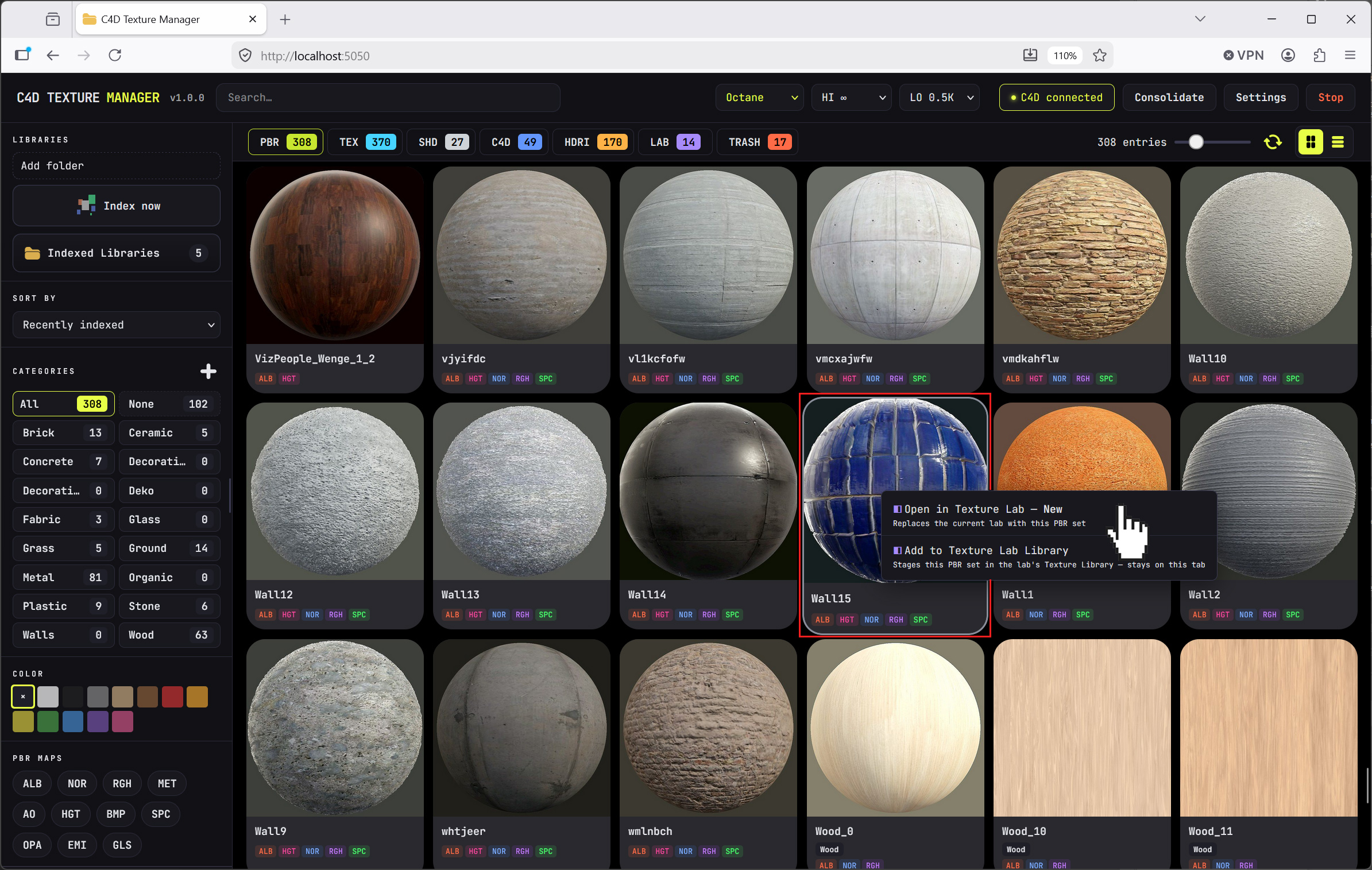
Screenshot 1, Right-click menu on a PBR card
Right-click any card on the PBR or TEX tab to send it into the Texture Lab. Open in Texture Lab — New replaces the current lab session with this material and switches to the LAB tab. Add to Texture Lab Library stages the material in the lab's library panel without leaving the current tab, useful when you want to collect several sets first and work on them later. The Add option also works on multi-selections.
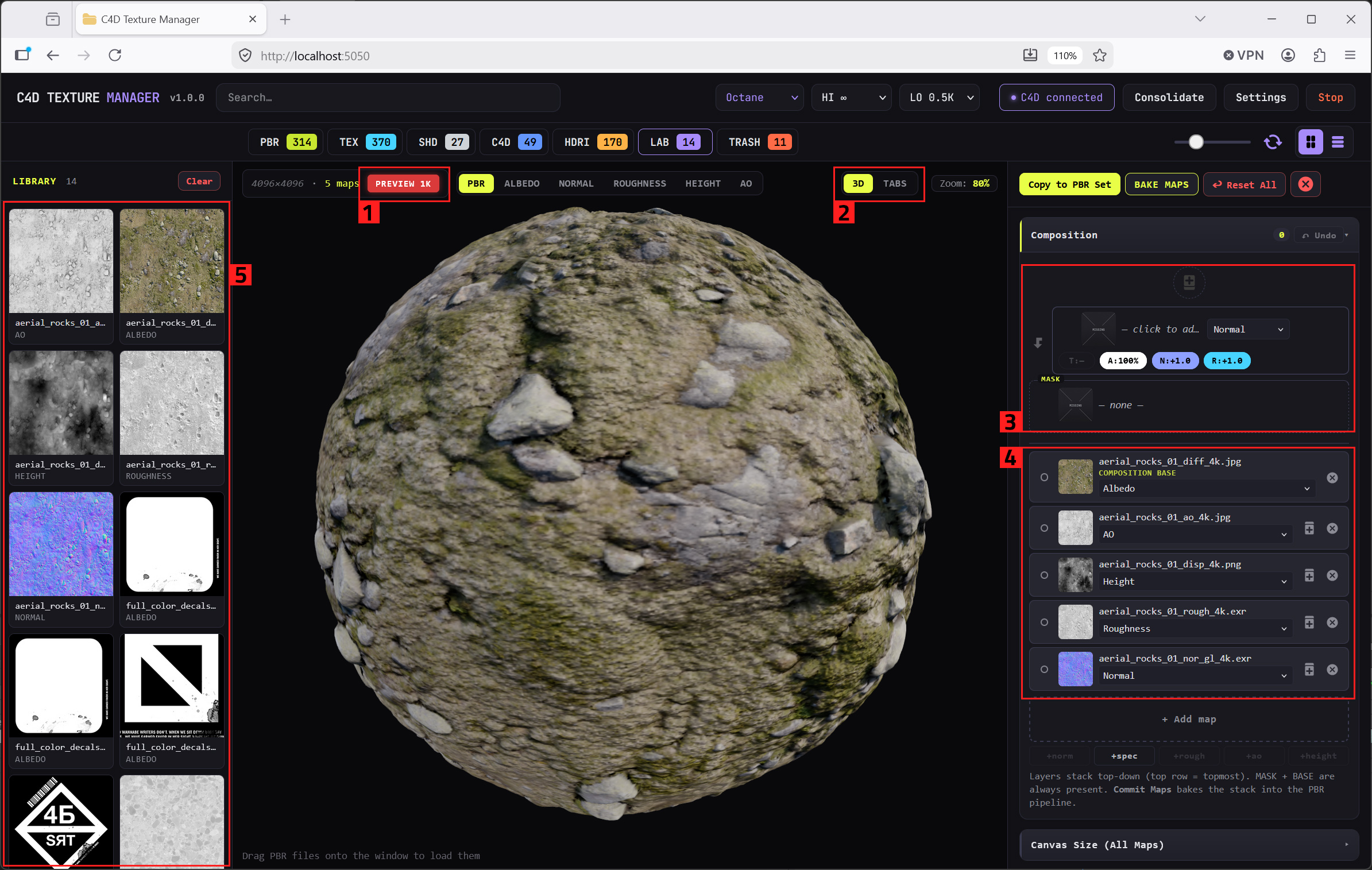
1. Preview resolution toggle
Switches the live preview between 1K and the full canvas resolution. 1K keeps the viewport snappy while you compose; flip to full res to check fine detail before baking.
2. 3D vs Tabs
3D shows the material wrapped on a sphere with live lighting, Tabs shows the flat 2D maps individually so you can inspect each channel directly.
3. Composition stack
The layered editor for the albedo. The bottom of the stack is the Base, layers go on top, and the Mask slot below gates every layer through a grayscale map. Each layer carries pills for opacity (A), normal (N±), and roughness (R±), plus a blend mode dropdown.
4. Map slots
The actual PBR channels of the material, Albedo, AO, Height, Roughness and so on. New maps can be added with + Add map. The small action buttons next to each slot derive missing channels directly from the albedo, +norm generates a normal map, +spec, +rough, +ao, +height. Useful when a texture set ships incomplete or when you start from a single albedo and want to build a full PBR set from it.
5. Library panel
All textures staged for this lab session. Double-click a thumbnail to assign it as Base, Mask, or as a new layer in the Composition stack. Drag PBR files onto the lab window to add them to the library on the fly.
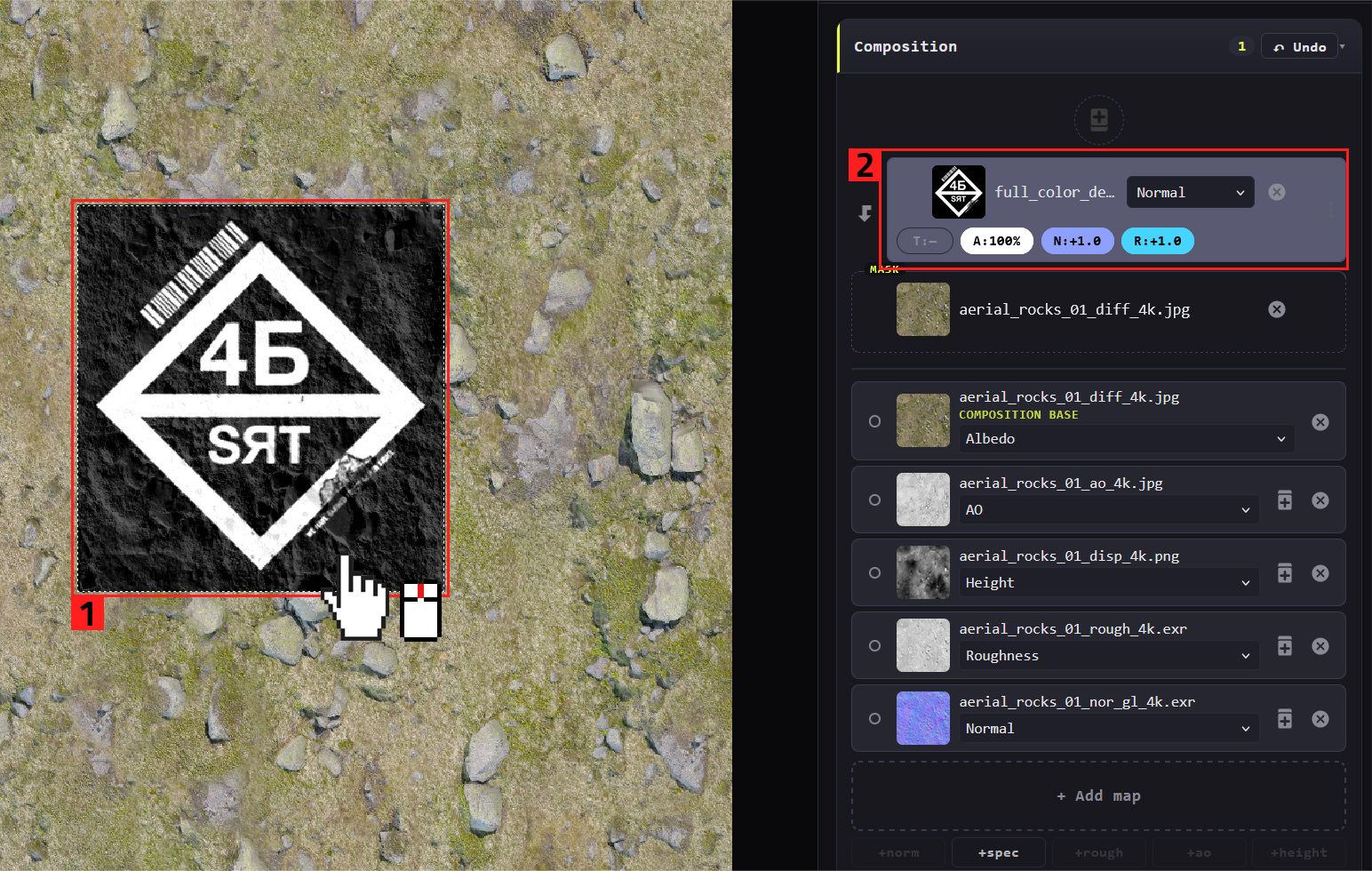
Double-click a texture in the library panel to add it as a new layer in the Composition stack. Once added, click the layer to select it, a dashed bounding box (1) appears on the canvas. The layer also shows up as a row in the Composition panel (2) with its own opacity, normal, and roughness pills plus a blend mode dropdown. Drag inside the bounding box to move the layer; scroll wheel to scale it; Shift + scroll to sweep the mask threshold.
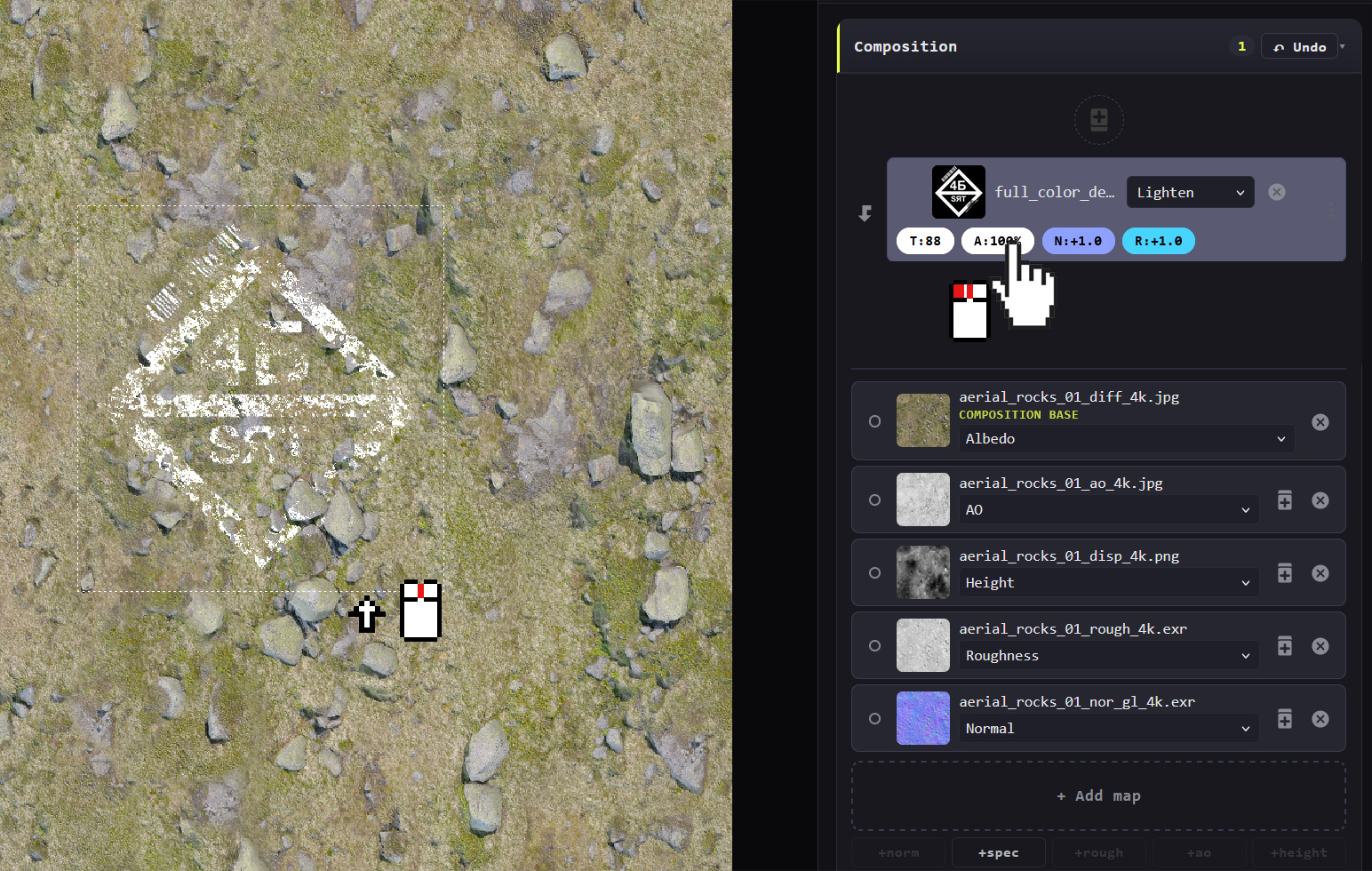
Switch the layer's blend mode in the dropdown next to its name, Normal, Lighten, Multiply, Screen, and so on, to control how the layer mixes with what's beneath. Shift + scroll wheel on the bounding box sets the layer's mask threshold (T value on the pill row), which selects a tonal slice of the global mask to gate this layer through. Bright pixels in that slice let the layer show, dark pixels hide it.
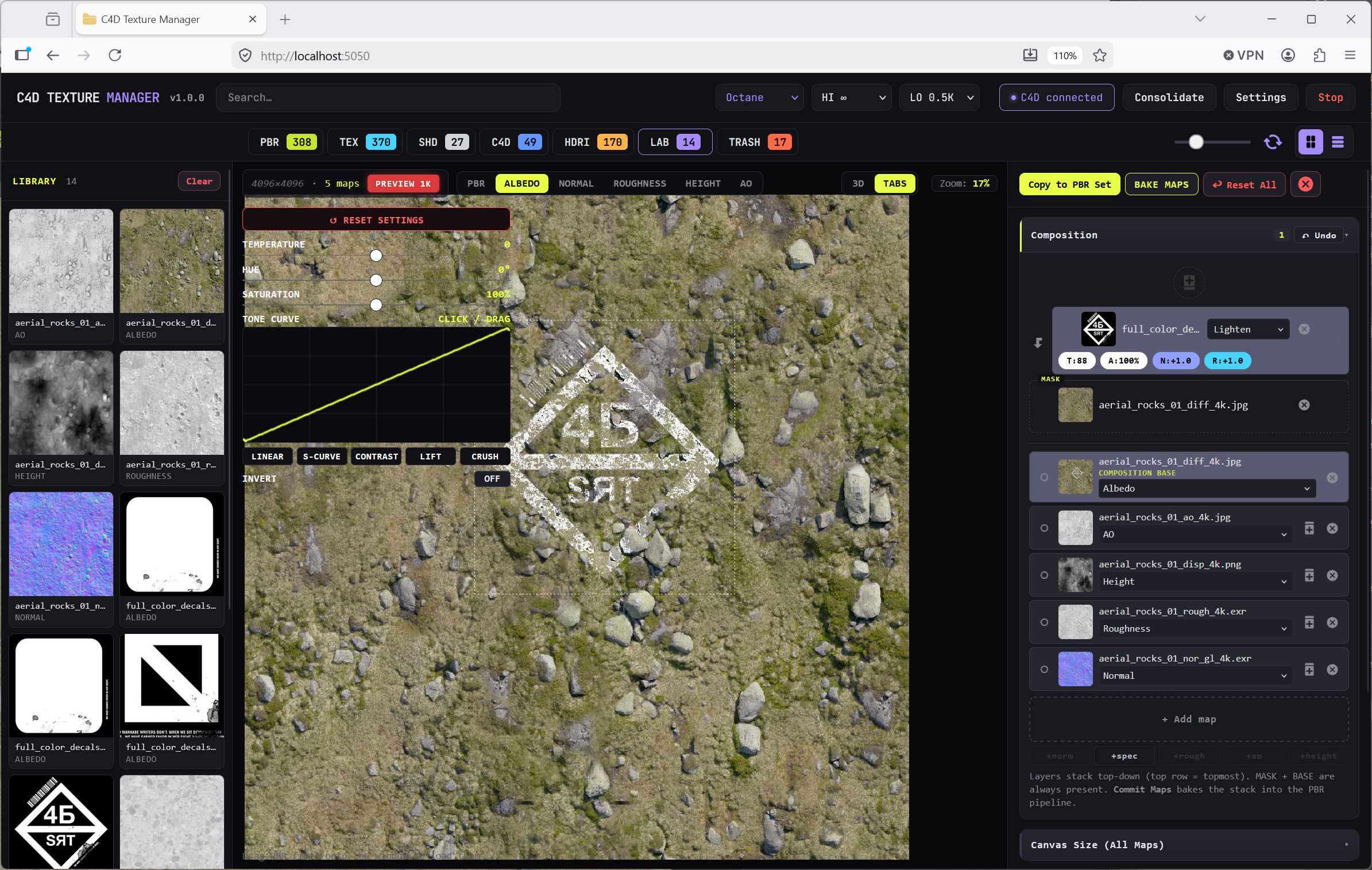
Each layer (and the base) has its own per-section editors. Selecting the Composition Base row opens the Color Correction panel for the albedo, with sliders for Temperature, Hue, Saturation, plus a Tone Curve with quick presets (Linear, S-Curve, Contrast, Lift, Crush) and an Invert toggle. Edits are non-destructive and live; Reset Settings reverts the section. Below Color Correction, the same layer also exposes Normal Map generation, Height adjustments, Seamless Tiling, and Equirectangular Warp, each commit-able independently.
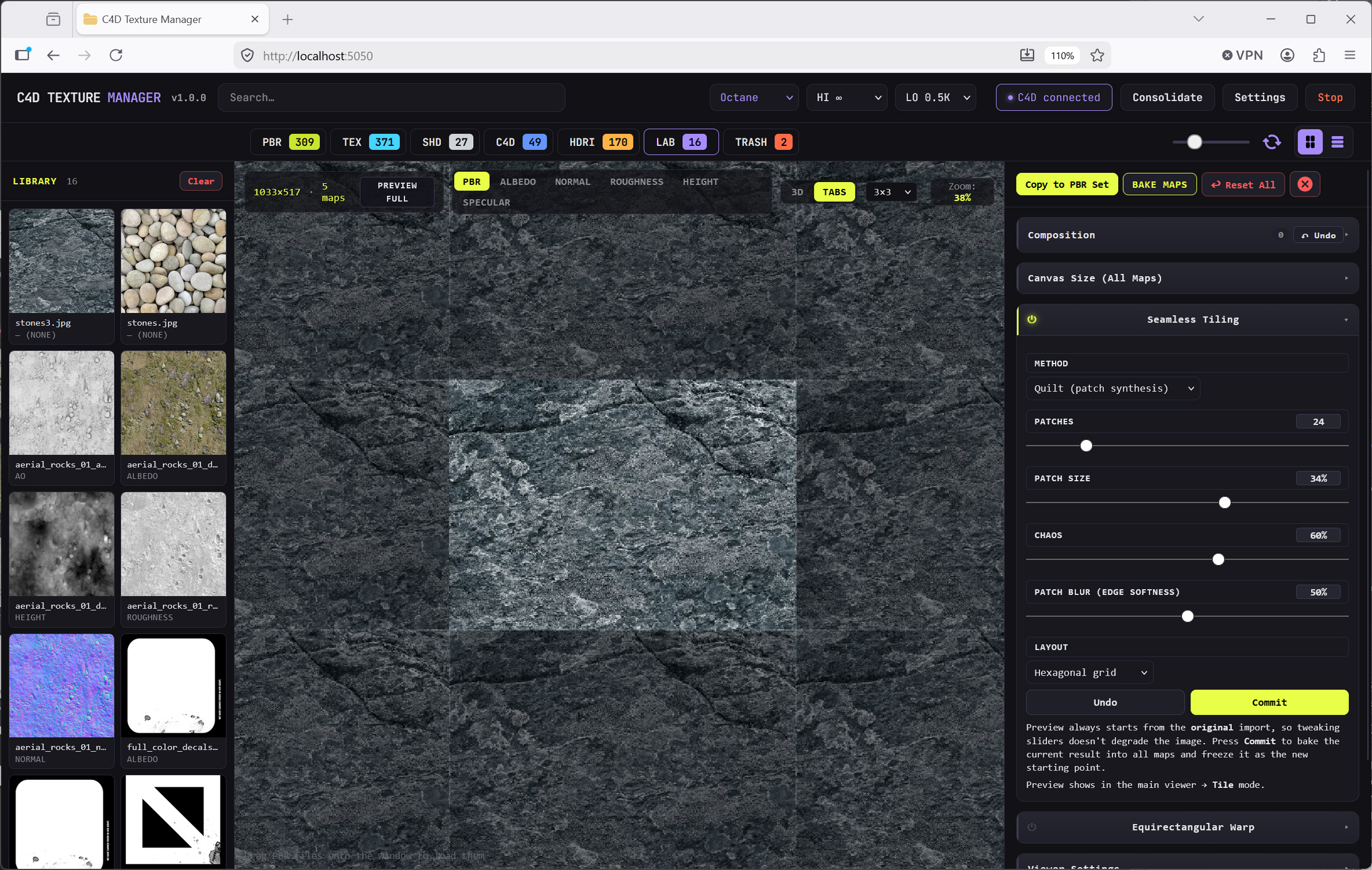
Seamless Tiling converts non-tileable textures into proper tileables. Pick a method, Quilt (patch synthesis) for natural-looking organic results or Edge blend for a quick offset-and-feather fix. Patches, Patch Size, Chaos, and Patch Blur control the quilt behavior; Layout switches between rectangular and hexagonal grids. The preview tiles the result in the main viewer (3×3 by default) so you can judge the seams in context. Commit bakes the result into every map at full canvas resolution; Undo reverts to the previous state.
Pricing
REQUIREMENTS
Windows 10 or 11 (64-bit)
Cinema 4D 2024 or newer (tested with 2025.2 and 2026.1)
A modern browser (Chrome, Edge or Firefox)
Internet connection on first launch (license activation) and during
every full re-index (catalog sync). Day-to-day use is offline.
FEATURES
• Local & offline
• Auto PBR indexing
• Redshift & Octane export
• Hi/Lo resolution switch
• Consolidate to portable library
• Built-in Texture Lab (BETA)
• Shader & object archive (BETA)
• Categories, tags, color filter
• HDRI library
• Non-destructive workflow
u.v.m
$59 INDIVIDUAL LICENSE
Freelancer, single seat
$99 SMALL STUDIO LICENSE
Agency with 2–10 seats
$149 ENTERPRISE LICENSE
Agency with 11 or more seats
One-time payment
All future v1.x updates free
COPYRIGHT
All artwork on this site are Copyright © 2017 Florian Renner, or their respective copyright holders. Do not use without permission.
Impressum
CONTACT
Florian Renner, Munich, Germany
mobile: +49 (0)157.74 74 74 89
mail: hello (at)florenoir.de